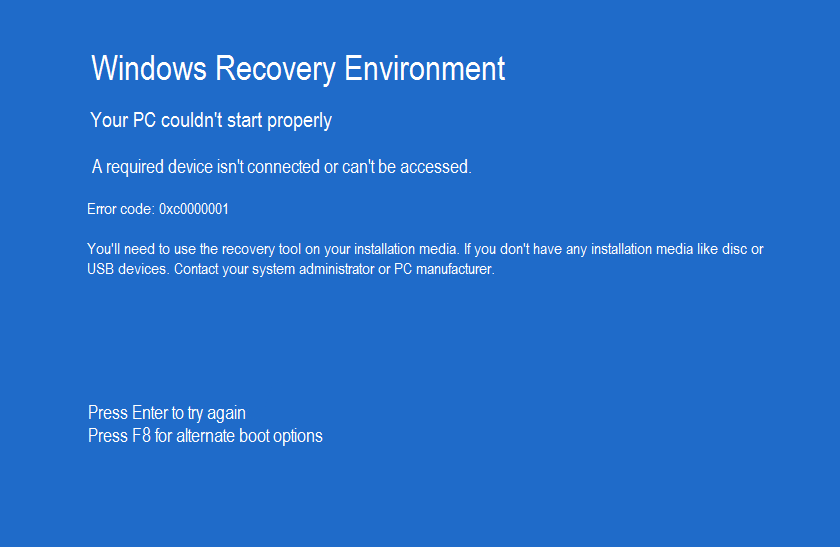
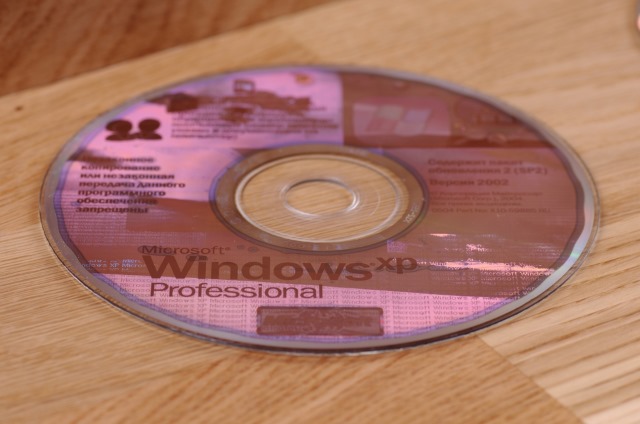
Ways to Reset a Windows XP or Vista Password. Find a Windows Vista installation or recovery disc. In order to perform this method, you will need to enter the Recovery Console, which can only be accessed with a Windows Vista installation or recovery disc. The installation disc doesn't need to be the one you use to install your operating system, but it does need to be for the same version of Windows.
Insert the installation disc into your computer. Restart your computer. Enter your BIOS setup. When the POST screen (the screen that appears before the loading bar shows up and usually displays the computer manufacturer's logo) appears, press the button indicated by it to enter your BIOS setup.
Wi-Host: Freeware to Turn Your Windows PC or Laptop into Wi-Fi Hot Spot to Share Internet Connection. Imagine a situation when you have a mobile phone or a tablet and.
This will start the Setup program. This is located in the bottom- left corner of the Install Windows screen.
I need help.I’ve got DR GURAD & ANTIVIRUS XP 2010 on my machine. I don’t know how that happened. I can’t find registry entries of either of them, I can’t. Turn your iPad into a game console, and your iPhone into a controller. I followed your instruction on the Vista part. However, my problem is my drive default is pointing to x:Sources. I believe this is where my Recovery CD is being read.
After clicking, wait a few moments while the Setup program locates your Windows installation. Make a note of which drive Windows is installed on. This is typically the C: drive, but it may be on the D: drive. Press Enter. Press Enter. Allow Windows to reboot as it normally would. Instead of opening the Accessibility options, the Command Prompt will open.
Press Enter. Replace username with the user you want to change, and newpassword with the new password. As soon as you run the command, your new password will be ready to go. You can use it to log in immediately. Once you are back into Windows, you can create a password recovery disk so that you can avoid problems like this in the future. Using the disk will allow you to quickly retrieve your lost password. See this guide for detailed steps on creating and using the disk.

Classic Shell: Turn Windows 8 Into Windows 7/XPDo you have Windows 8? Are you frustrated with the new interface and how they moved and changed pretty much everything? Thankfully, some very creative people over at Classic Shell have released a freeware utility which can give you back the Start Menu everyone loved. Let’s take a look at what Classic Shell does and some of its features,Classic Start Menuis a clone of the start menu from Windows 2. XP and Vista. Sadly, it is missing in Windows 7. The number of documents to display is customizable. Translated in 3. 5 languages, including right- to- left support for Arabic and Hebrew.
Does not disable the original start menu in Windows. You can access it by Shift+Click on the start button. Right- click on an item in the menu to delete, rename, sort, or perform other tasks. The search box helps you find your programs without getting in the way of your keyboard shortcuts. Supports jumplists for easy access to recent documents and common tasks. Available for 3. 2 and 6.
Has support for skins, including additional 3rd party skins. Make your own! Fully customizable in both looks and functionality. Support for Microsoft’s Active Accessibility.
Converts the “All Programs” button in the Windows menu into a cascading menu (Vista and Windows 7)Implements a customizable start button (Windows 7 and 8 )Can show, search and launch Windows Store apps (Windows 8 )Classic Exploreris a plugin for Windows Explorer that: Adds a toolbar to Explorer for some common operations (Go to parent folder, Cut, Copy, Paste, Delete, Properties, Email). The toolbar is fully customizable. Replaces the copy UI in Vista and Windows 7 with the more user- friendly “classic” version similar to Windows XPHandles Alt+Enter in the folder panel of Windows Explorer and shows the properties of the selected folder. Has options for customizing the folder panel to look more like the Windows XP version and an option to not fade the expand buttons. Can show the free disk space and the total size of the selected files in the status bar.
/about/delete-windows-10-password-591b46fa3df78cf5fa20d027.PNG "Turn My Xp Into Vista")
Can disable the breadcrumbs in the address bar. Fixes a long list of features that are broken in Windows 7 – missing icon overlay for shared folders, the jumping folders in the navigation pane, missing sorting headers in list view, and more. Classic IE9is a plug- in for Internet Explorer 9 and 1.
Adds a caption to the title bar so you can see the full title of the page. Shows the security zone in the status bar. Shows the loading progress in the status bar. My experience with Classic Shell has been nothing but superior, especially the drag and drop functionality in the start menu.
I highly recommend downloading it and giving it a try. You can read more information about Classic Shell and download it by clicking here.- Tim. Tags: classic shell, classicshell, windows 8, windows 8 start menu, windows start button.

This entry was posted. Wednesday, February 6th, 2. AM and is filed under Software Reviews, Windows 8, Windows Explorer.


/https%3A%2F%2Fassets.over-blog.com%2Ft%2Fcedistic%2Fcamera.png)
/https%3A%2F%2Ffthmb.tqn.com%2Fi_zxnRK8Lx9z4cDq5PcusjfRsp4%3D%2F400x0%2Ffilters%3Ano_upscale%28%29%2Fabout%2FWindowsVistaLogo-57c958165f9b5829f4aa4c9a.png)
/https%3A%2F%2Fcdn.instructables.com%2FFH1%2F6C8L%2FINS17GNR%2FFH16C8LINS17GNR.MEDIUM.jpg)
/https%3A%2F%2Fwww.geooptic.ru%2F_image%2Fdata%2Fproduct%2F3_16394.jpg)